1. Activating Loyverse Payments on Your Account
2. Adding Loyverse Payments as a Payment Type
Loyverse Payments allows merchants using Loyverse POS to accept credit and debit card payments via a payment terminal or through Tap to Pay on a smartphone.
Note: Loyverse Payments is currently available in the USA only.
1. Activating Loyverse Payments on Your Account
Log in to your Back Office.
Go to Payments.
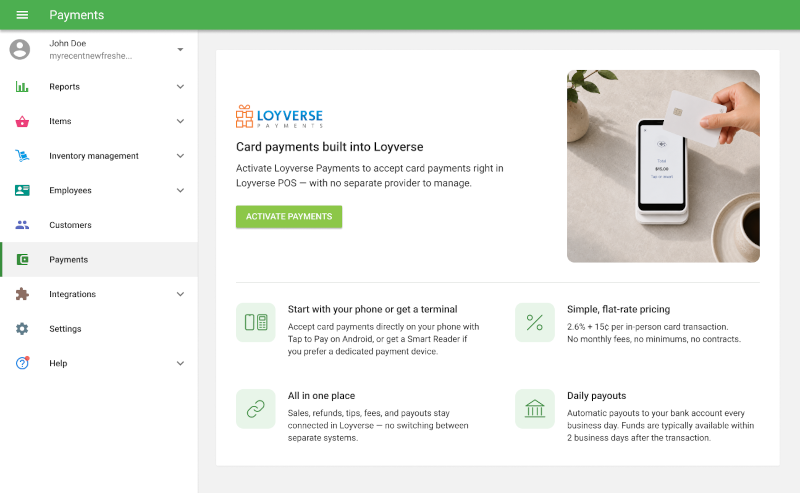
Click Activate Payments and complete the onboarding steps:
- Select your Business Type: Individual, Company, or Non-Profit, then click Continue.
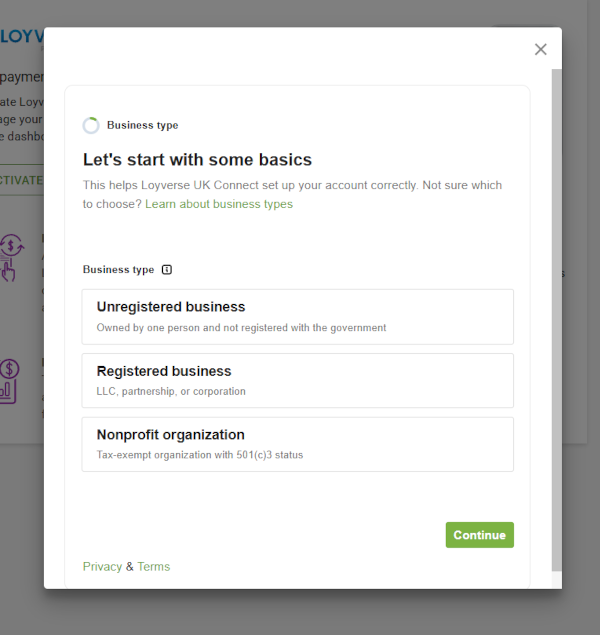
Fill in all required fields and click Continue. Repeat until all steps are complete.
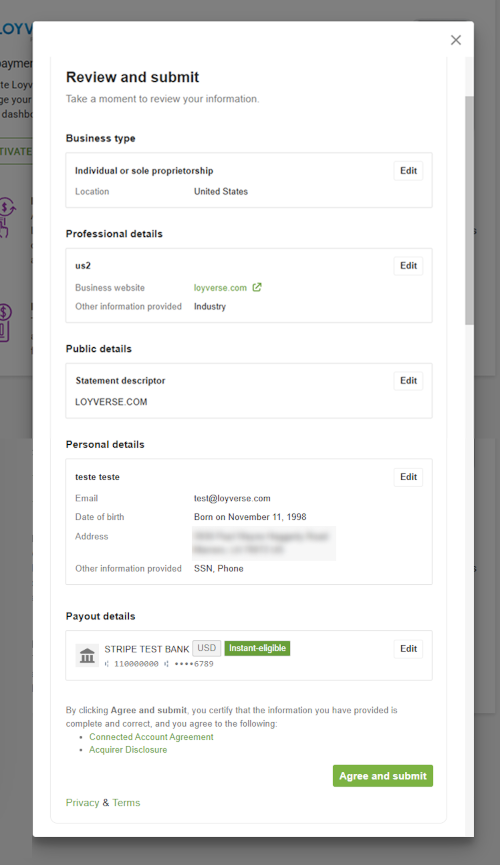
Review your information and click Submit.
Your account status will show Under Review while your application is being processed.
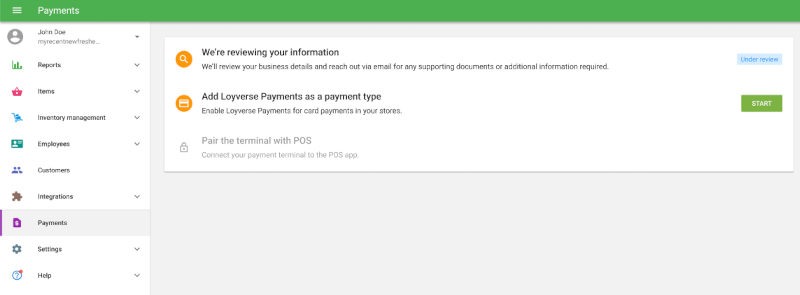
Once your account is approved, you'll see the Approved to accept payments notice.
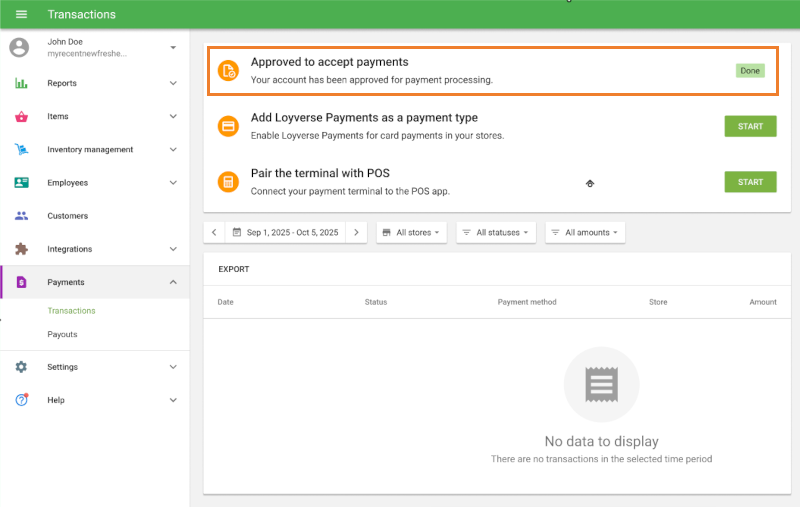
You can then proceed to add Loyverse Payments as a payment type.
2. Adding Loyverse Payments as a Payment Type
In the Back Office, go to Settings → Payment Types.
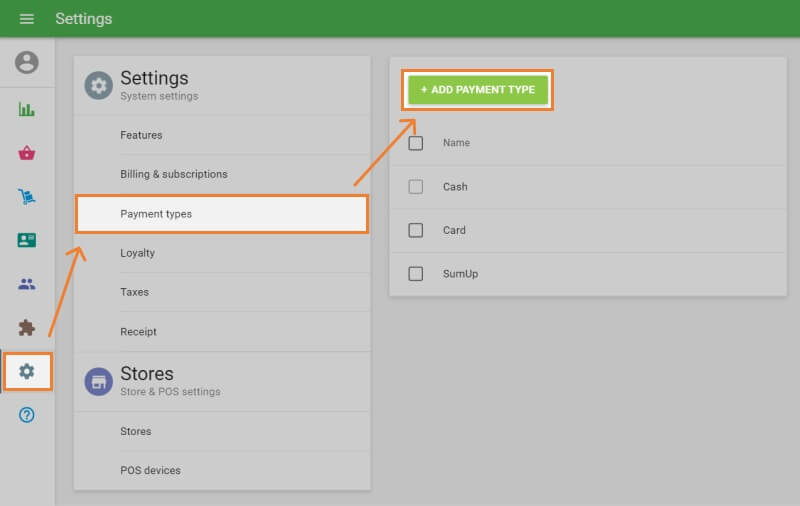
Click Add Payment Type.
From the drop-down list, select Loyverse Payments.
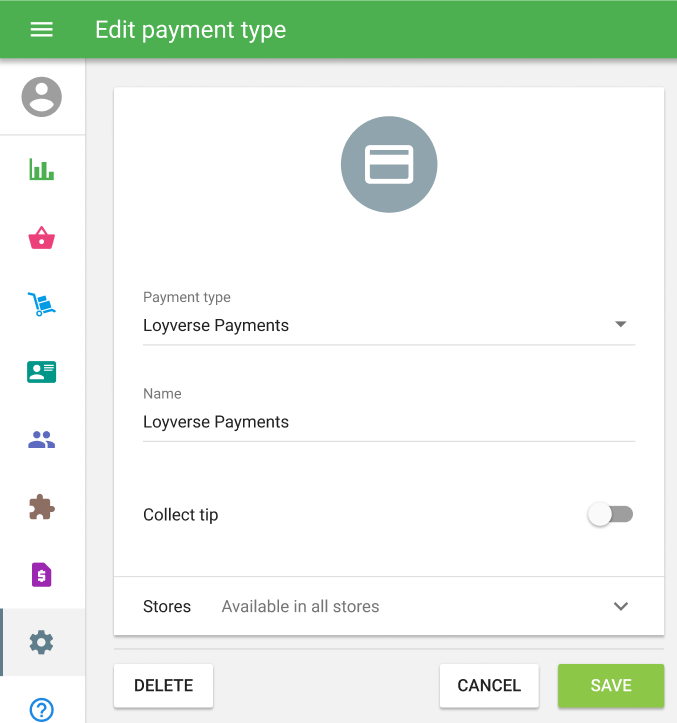
If you want to collect tips, enable the Collect Tip toggle and set your predefined tip percentages.
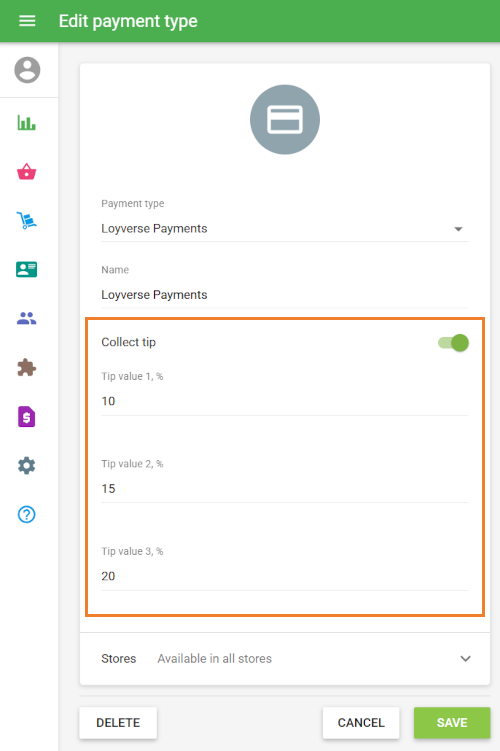
Click Save.
How Tips Work
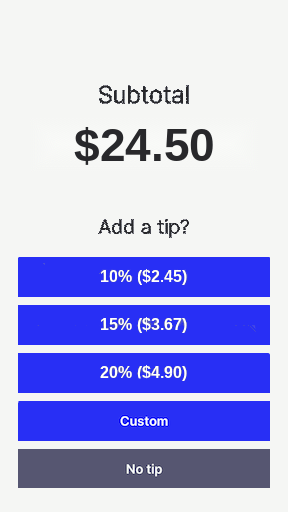
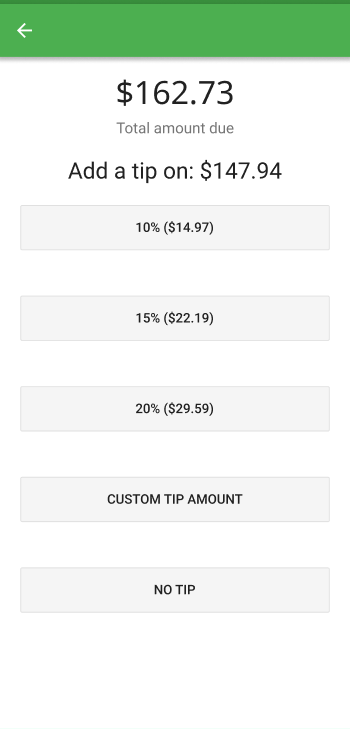
Once tips are enabled, customers will be prompted to select a tip amount before completing the payment:
- Payment terminal — Tip options are displayed on the terminal screen.
- Tap to Pay — Tip options are displayed on the POS screen after the customer selects Tap to Pay as the payment method.
See also:
How to Accept Card Payments with Loyverse POS and Loyverse Payments on Terminal
How to Process Refunds of Sales Made with Loyverse Payments
How to Accept Card Payments with Loyverse POS through Tap to Pay on a Smartphone
How to View Card Transactions of Loyverse Payments and Payouts